
Pipedrive's email features will revolutionize the way you handle communication. With email sync and open and link-click tracking, Pipedrive integrates seamlessly with your email, improving collaboration, organization, and tracking across your team.
Setting up Pipedrive's email sync lets you:
- See all communication with a lead right within their deal
- Use template emails to communicate with speed
- Know when a particular person has opened your email, clicked on links, and more
Here's what we'll cover:
- How to sync your email in Pipedrive
- How to customize your email sync settings
- How to track email opens and link clicks
- How to create your email signature in Pipedrive
- How to create email templates in Pipedrive
 Claim Your 30-day Free Trial!
Prefer to watch? Press play and follow along. Pro tip: this demo is fast, so keep your cursor near the pause button to catch all the steps!
Step 1: Sync your email
You can sync your email in Pipedrive in under two minutes. Follow these steps to get started:
- Navigate to Personal preferences > Email sync and click Connect email account.

- Type in your email address and click Continue, making sure you're signed in to that email account in your browser.
- Check all the boxes needed to grant Pipedrive the required access and click Continue.
Now you're ready to customize your sync preferences.
Step 2: Customize your sync settings
After adding your email account, you'll see additional setting options. Here's what you need to know:
- Click Start syncing to begin the sync process.
-
Explore options like the default email sharing settings under the
Account tab, where you can choose between shared and private access
to your linked email conversations:
- Shared: Email conversations are visible to other users only when they're linked to Pipedrive items.
- Private: Email conversations can still be linked to Pipedrive items, but only you can see them.
Step 3: Track opens and link clicks
When you turn on email open and link-click tracking, you get a notification every time an email is opened. My favorite part of this feature is getting a notification that a sales email was opened weeks after it was sent. That's a buying signal, and a great time to reach back out!
- Under the Account tab, turn on open tracking and link tracking.
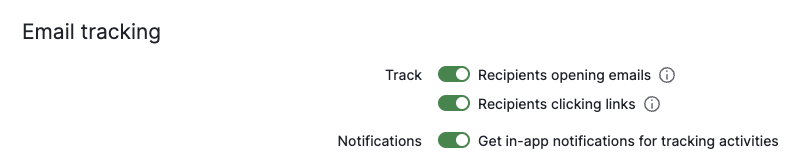
- Go to the Sales Inbox, click + New email, and draft an email to yourself or a team member. Before you hit send, click the eyeball and arrow icons. Both icons should be blue.
- Now click Send.
You've now turned on open and link-click tracking for every email you send from here on out. If you click those icons again (and they turn gray), the feature is off until you turn it back on.
Step 4: Create your signature
Do you have an email signature set up in your email client (Outlook, Gmail, etc.)? If so, you'll want to recreate the same signature in Pipedrive.
- Navigate to Personal preferences > Email sync and click + Add signature.
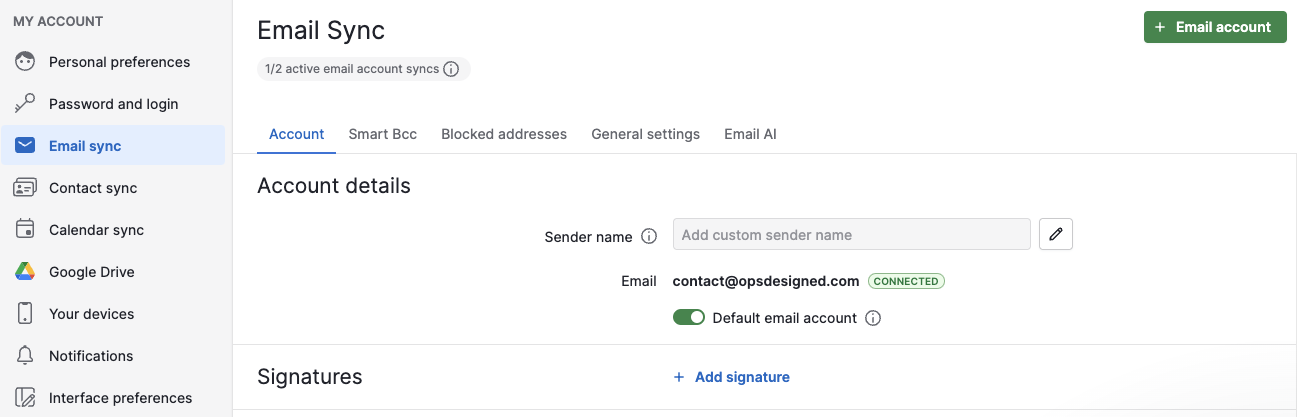
- Enter the content you want, add an image or hyperlink, and save.
- Test your signature by sending a test email to yourself.
Step 5: Create your email templates
Save yourself hours by creating template emails you can use again and again! You can do this from the Sales Inbox, but best practice is to create email templates from within a deal, so you can easily reference custom detail fields and test your templates.
- Within a deal, click Email, then Choose template, then Manage templates. Finally, click Add new template.
- Create a template name. This is internal only, so something like “#1 Outreach” is a great option.
- Set the visibility (Private: only you can use the template; Shared: any Pipedrive user in your account can use it) and draft your subject.
- Insert dynamic fields from the deal, person, or organization to personalize your template, for example “Hi
{{First Name}}.” You can use dynamic fields in the subject line too, for example “{{First Name}}, how's it going with{{deal detail field}}?” - Save your template and test it by composing an email that uses it.
Conclusion
Pipedrive's email features will transform the way you communicate with prospects. They make everything smoother: they improve collaboration, help you keep track of every conversation, and give you important signals about readiness to buy. So, for a better Pipedrive experience, why not tap into the full power of integrated email?
Interested in setting up some email automations? Check out this video to get started: Pipedrive Email Automation.
Need more help to make Pipedrive work for you?
Pipedrive is a powerful CRM that can be a game changer for your business, if you're using it to its fullest potential. Can't get the automations and integrations to work the way you want? Tired of reading articles and watching videos only to end up in the same spot? Book a working session and we'll do the work for you.
Book a Working Session